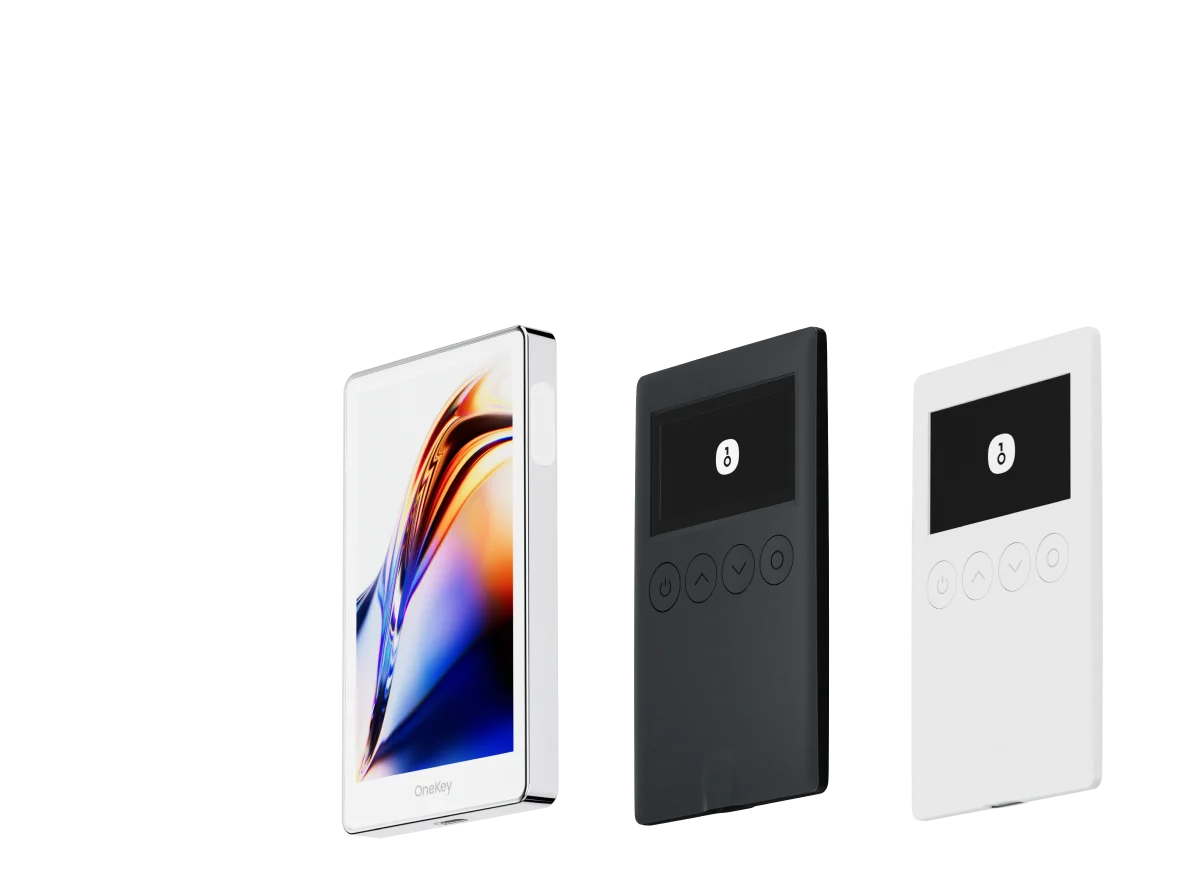
OneKey Perps + Hyperliquid: Complete Setup and Trading Guide
OneKey Perps is one of the most practical ways to access Hyperliquid’s on-chain perpetual futures directly from a wallet. There is no exchange account to create, no KYC flow, and no WalletConnect setup to manage. Open the OneKey App, enter the Perps interface, deposit margin, and trade. Source: MetaMask docs. Source: OneKey GitHub.
This guide walks through the full OneKey + Hyperliquid setup from scratch, including wallet creation, USDC funding, deposits, order placement, position management, and key risk controls.
Key comparison table
Why use OneKey Perps for Hyperliquid?
Hyperliquid is an on-chain order book perpetual DEX built on its own chain. It supports perpetual contracts for major crypto assets, offers competitive fees, and keeps the trading flow non-custodial. The experience is closer to a centralized exchange, but users keep control of their private keys and assets.
OneKey Perps makes that experience easier to access:
- The wallet is the entry point, so you do not need to switch between apps
- Optional OneKey hardware wallets add secure-chip protection for private keys
- Open-source firmware can be publicly audited
- Assets from more than 50 chains can be used as funding sources
Step 1: Install OneKey App and create a wallet
Download and install
Download the official app from onekey.so/download. OneKey supports iOS, Android, and desktop. Always use the official download page and avoid lookalike phishing sites.
If you plan to trade with larger amounts, consider using a OneKey hardware wallet and follow the device setup instructions during initialization.
Create or import a wallet
On first launch, choose Create Wallet and write down your recovery phrase carefully.
Recovery phrase safety basics:
- Write it down with pen and paper; do not screenshot it or save it to cloud storage
- Keep at least two physical backups in separate secure locations
- Your recovery phrase is the ultimate proof of ownership; if it is lost, your funds may be permanently unrecoverable
If you already use another BIP-39 wallet, you can choose Import Wallet and enter your existing recovery phrase. You do not need to move funds to a new wallet just to use OneKey.
Step 2: Prepare USDC for funding
Hyperliquid uses USDC as margin, so you need USDC before you can trade perps.
Common ways to get USDC
- Centralized exchange withdrawal: Buy or hold USDC on exchanges such as Binance, Coinbase, or OKX, then withdraw to your OneKey address. Use Arbitrum or Ethereum mainnet where supported.
- DEX swap: Swap another token into USDC through protocols such as Uniswap.
- Stablecoin bridge: Bridge USDC from another chain to Arbitrum using bridges such as Stargate or Hop.
Recommended network: Arbitrum
For most users, Arbitrum is the smoother funding route into Hyperliquid. Gas fees are much lower than Ethereum mainnet, and deposits usually arrive within minutes.
In the OneKey App, switch to the Arbitrum network, copy your receiving address, and use that address when withdrawing USDC from an exchange. Make sure the withdrawal network is also set to Arbitrum.
Step 3: Deposit USDC into your Hyperliquid margin account
After USDC arrives in your OneKey wallet, open the OneKey Perps interface:
- Click Deposit
- Enter the amount
- Confirm the network, usually Arbitrum
- Sign the transaction in your wallet
- Wait for on-chain confirmation, typically a few minutes
Once the deposit is credited, your Hyperliquid margin balance should update in OneKey Perps and you can start trading.
Note: Hyperliquid may apply withdrawal time and minimum amount rules. Before depositing, check the current Hyperliquid documentation so you understand the latest limits.
Step 4: Understand the trading interface
Before placing a live order, take a few minutes to understand the core parameters in the OneKey Perps trading screen.
Key concepts:
- Leverage: Higher leverage increases both potential gains and potential losses. If you are new to perps, start with low leverage.
- Isolated vs Cross margin: In isolated margin, the maximum loss for a position is limited to the margin allocated to that position. In cross margin, all positions share the account balance, which can reduce liquidation risk in some cases but also exposes more of your account.
- Liquidation price: If the mark price reaches this level, your position may be automatically closed and the margin used for that position may be lost.
Step 5: Open a position
Open with a market order
- Choose the direction: Long or Short
- Set leverage; use low leverage while learning the mechanics
- Enter position size, either in USDC terms or contract size
- Confirm the order
- Approve the wallet signature request to submit the trade
A market order is designed to execute immediately at the best available market price, but the final fill may differ from the price you saw when submitting the order, especially during fast markets.
Open with a limit order
A limit order follows the same general flow, but you also enter a target price. The order sits on the order book until it is filled or canceled. You can usually cancel an unfilled limit order at any time.
Set take-profit and stop-loss orders
After opening a position, find it in the position panel and select Set TP/SL:
- Stop Loss: Automatically closes the position if price moves against you to a specified level. This helps cap losses.
- Take Profit: Automatically closes the position if price reaches your target, helping lock in gains.
A stop loss is one of the most important risk management tools in perpetual futures trading. Consider setting one for every position, especially when using leverage.
Step 6: Manage and close positions
The position panel shows important real-time information, including:
- Unrealized PnL
- Margin used
- Liquidation price
- Current leverage
To close a position, click Close to submit a market close order. You can also use a limit order to close at a target price.
Common account actions
- View total margin: Account panel → Balance
- Add margin to reduce liquidation risk: Position panel → Add Margin
- Withdraw margin back to wallet: OneKey Perps → Withdraw → Choose target network
- Review trade history: Account panel → Trade History
FAQ
Q1: What are the trading fees on OneKey Perps?
OneKey Perps connects to the Hyperliquid protocol, so trading fees are determined by Hyperliquid. For current maker/taker fees and any fee discount mechanisms, refer to Hyperliquid’s official documentation. OneKey does not charge an additional trading fee on top of Hyperliquid’s fees.
Q2: Which markets does OneKey Perps support?
Supported markets generally match the Hyperliquid platform, including perpetual contracts for major crypto assets such as BTC, ETH, and SOL, as well as some stock perpetuals. The live market list in the Hyperliquid app is the source of truth.
Q3: If the OneKey App stops working, can I still access my funds?
Yes. Your funds are on-chain and controlled by your private keys. If the OneKey App is unavailable, you can restore access with your recovery phrase in a compatible wallet and interact with the relevant Hyperliquid contracts to withdraw funds.
Q4: Do I need to physically confirm every trade when using a OneKey hardware wallet?
Yes. When using a OneKey hardware wallet, each transaction requires physical confirmation on the device. This is an important security feature: even if your phone or computer is compromised, an attacker cannot move funds without the hardware device and confirmation.
Q5: Does Hyperliquid require account-level KYC?
As of the source article, Hyperliquid is a decentralized protocol and does not require users to register an account or complete KYC. Access may be affected by geographic restrictions, and users are responsible for understanding the rules that apply in their own jurisdiction.
Conclusion
OneKey Perps + Hyperliquid gives traders a streamlined way to access on-chain perpetual futures from a non-custodial wallet, without the usual friction of account setup or external wallet connections.
If you want to try this workflow, download the official OneKey App from onekey.so/download, set up or import your wallet, fund USDC, and use OneKey Perps to access Hyperliquid from inside the app.
Risk warning: This article is for operational reference only and is not investment, legal, or financial advice. Perpetual futures are high-risk instruments. Leverage can cause you to lose all of your margin in a very short period of time. Trade only with funds you can afford to lose and make decisions based on your own risk tolerance.